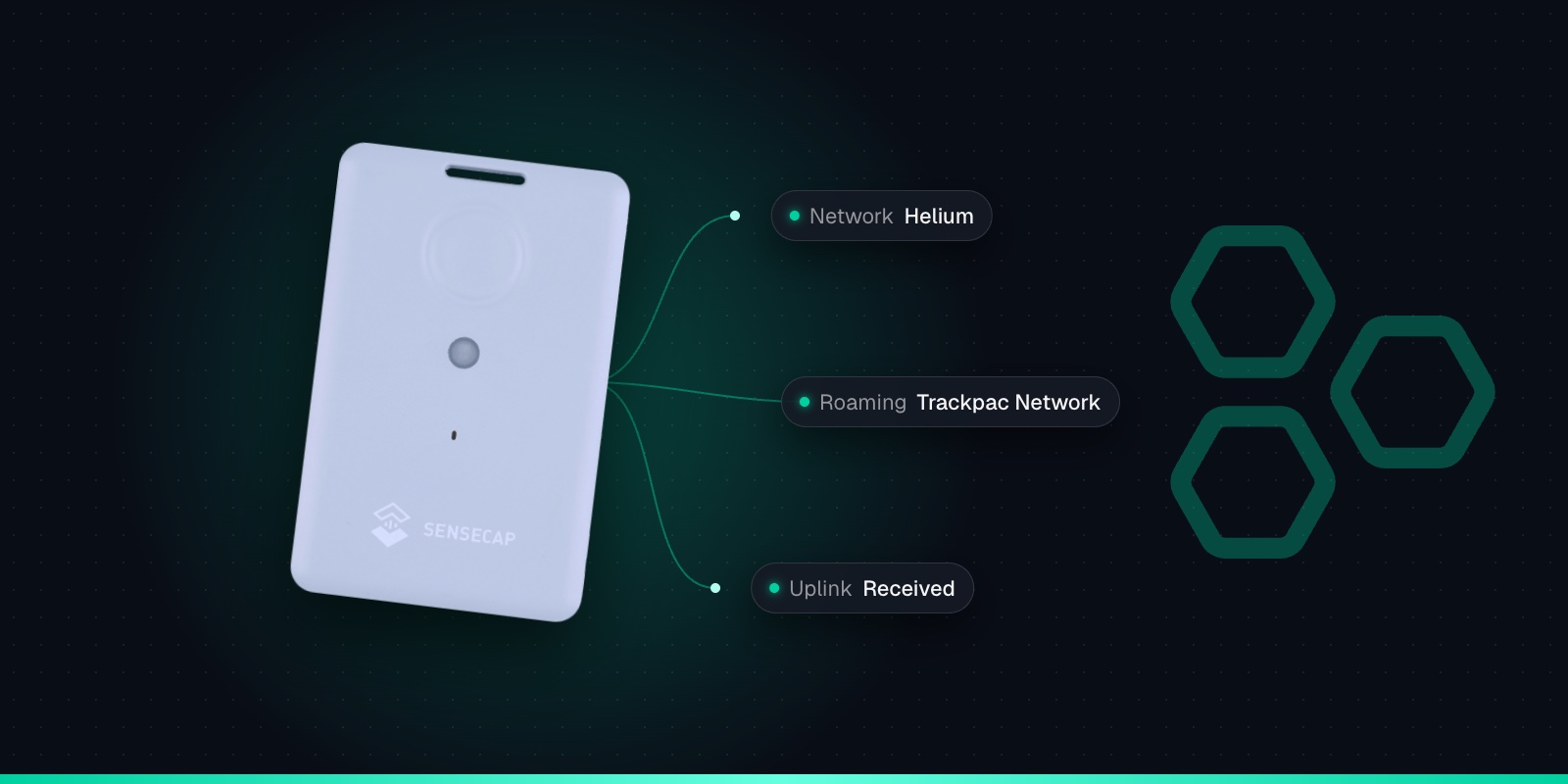
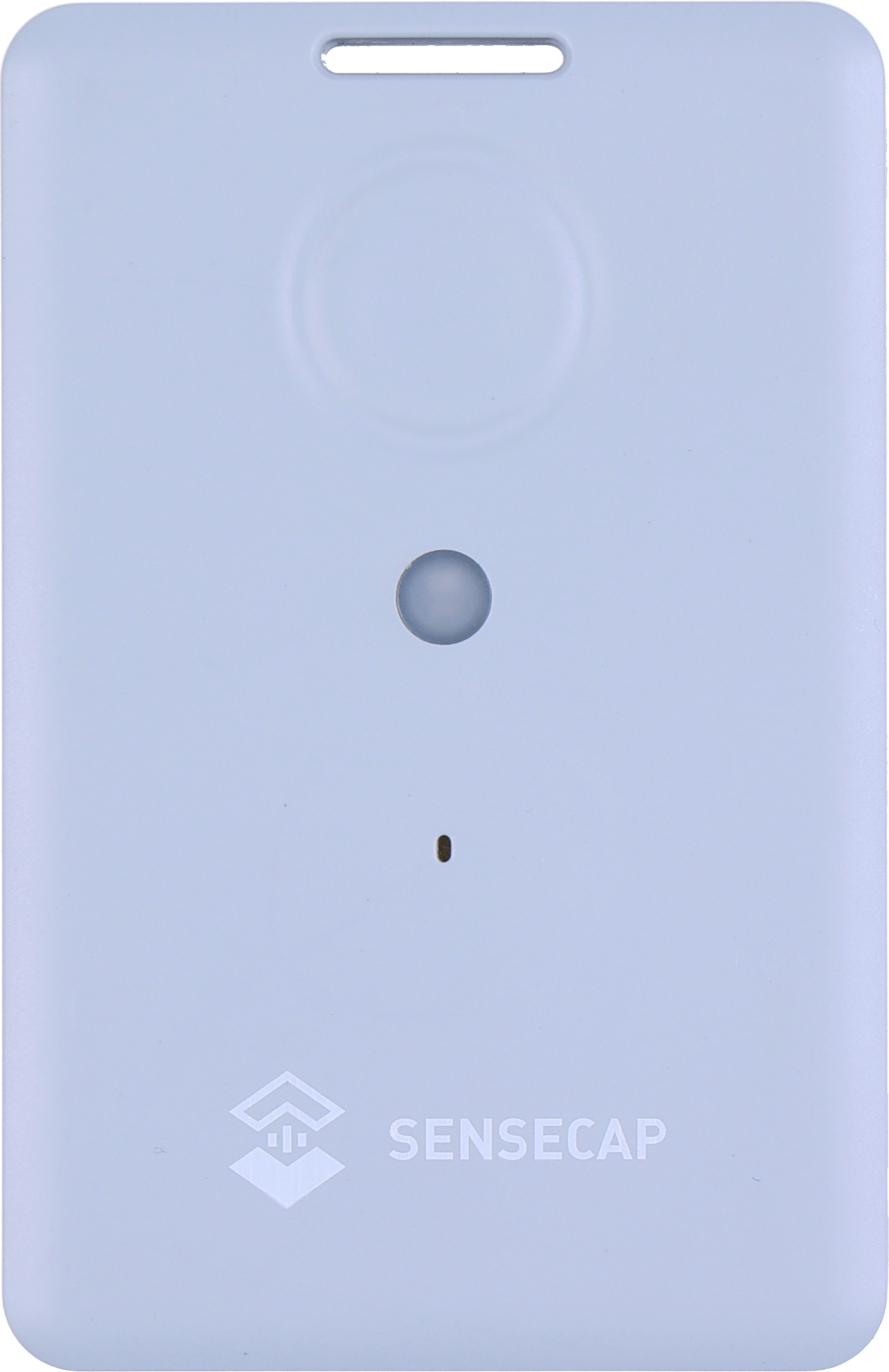
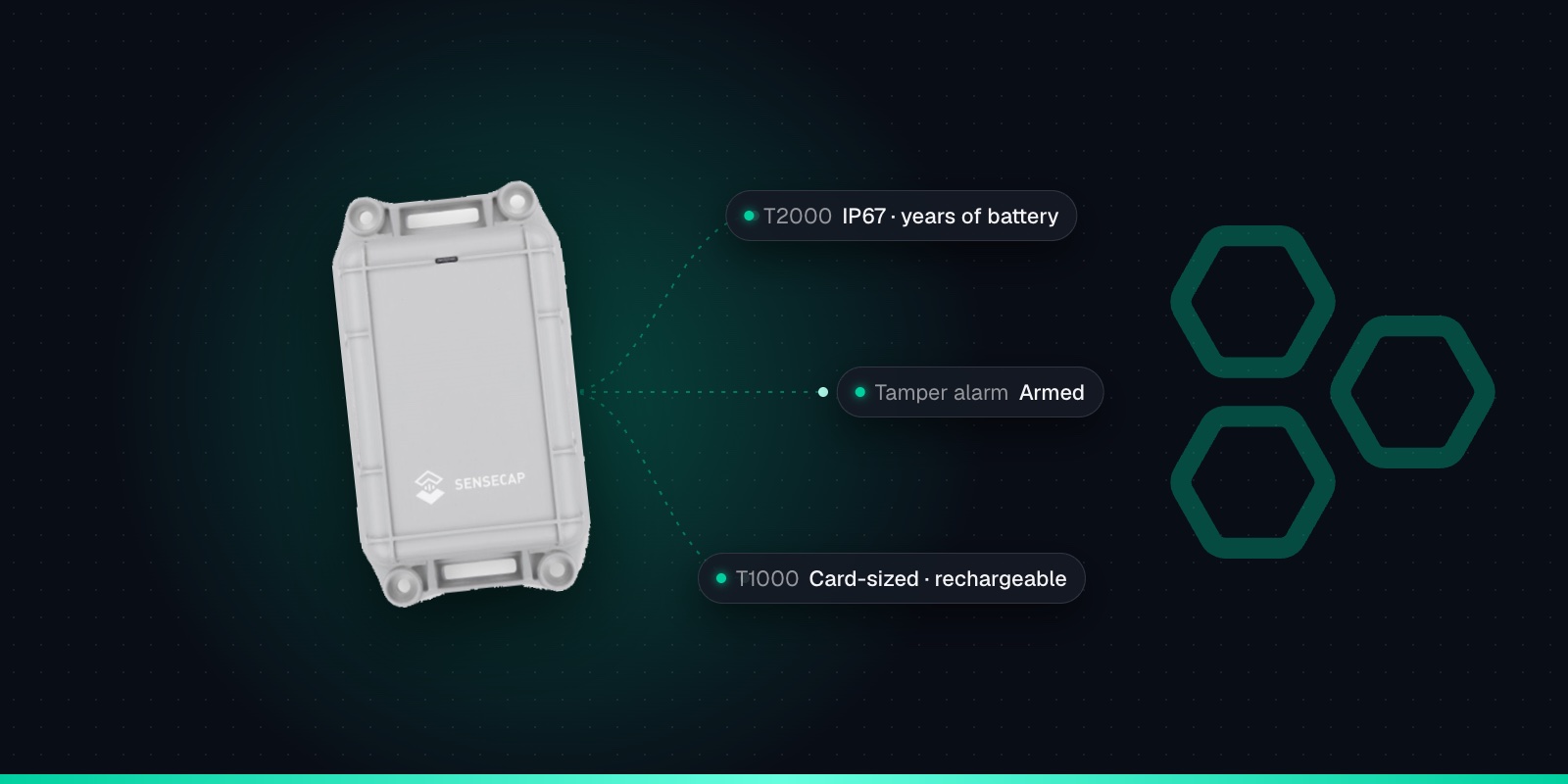
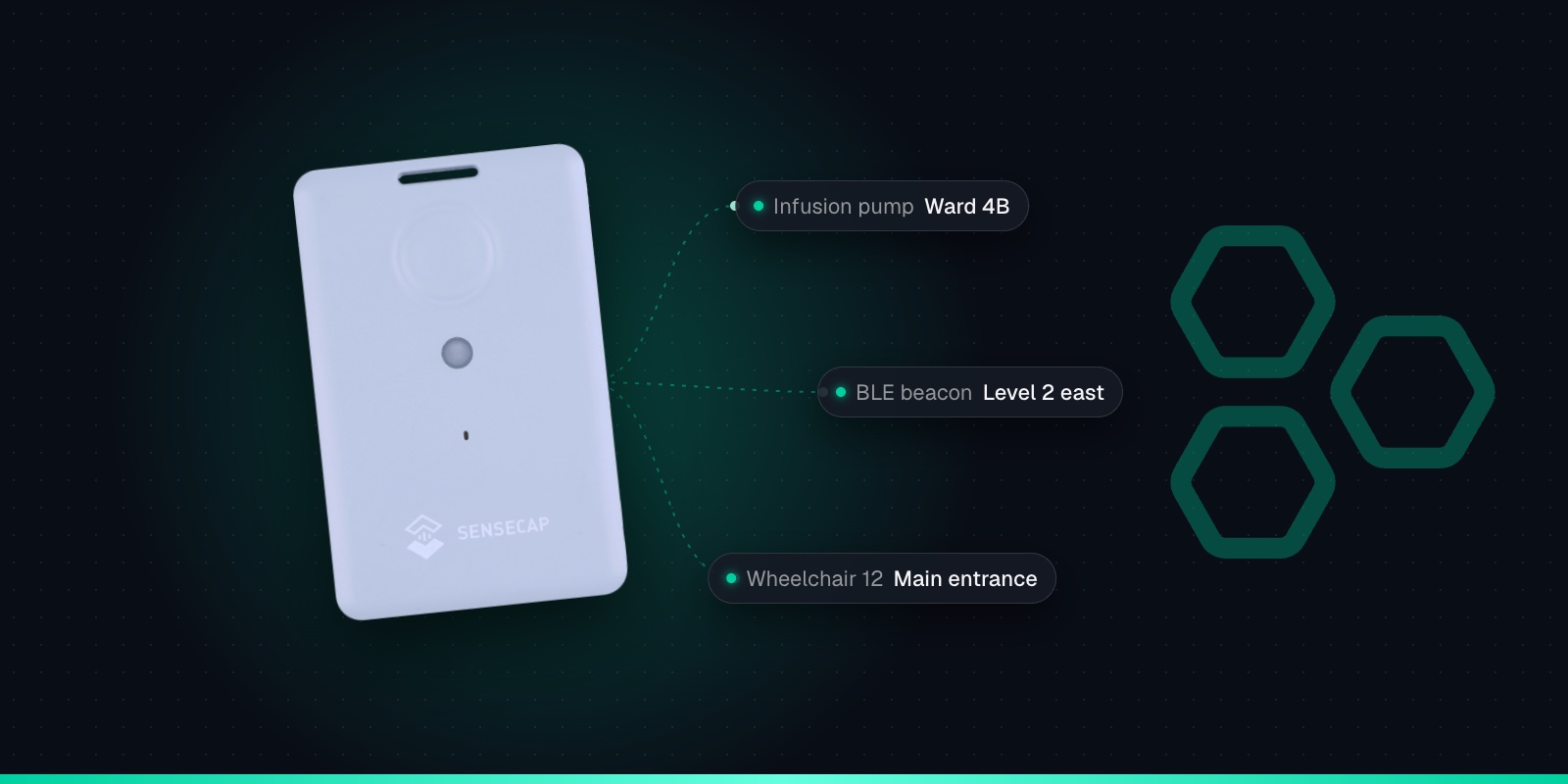
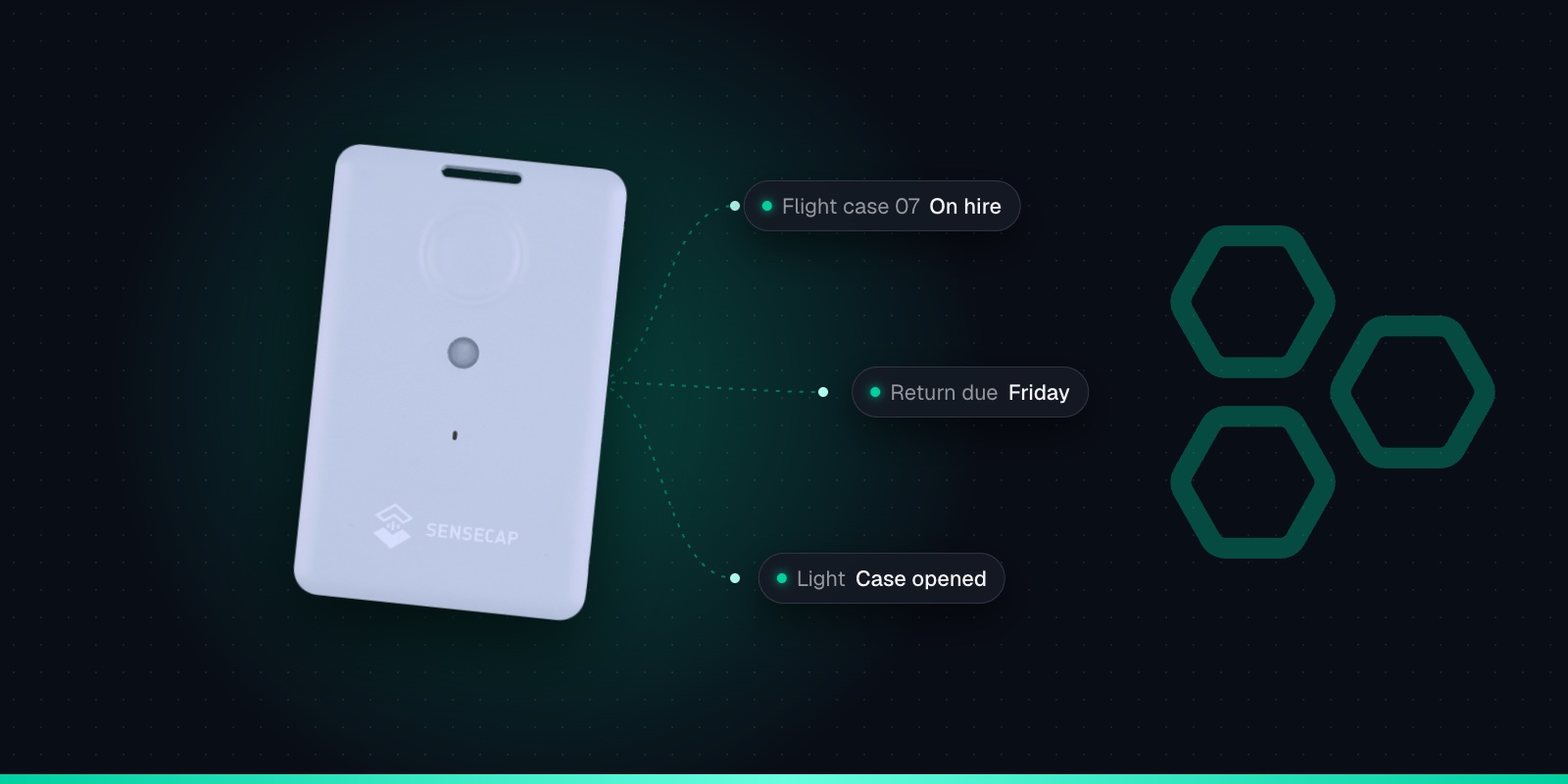
Helium is a large public LoRaWAN network, and the SenseCAP T1000 works on it out of the box. That's a big part of the T1000's appeal: in many towns there is already coverage, so a tracker can report without you putting up a gateway.
The part older guides leave out is that Helium's own console is closed to new accounts. If you've just bought a T1000 and want it on Helium, you need another way in. This guide explains the two realistic options, the settings that matter on Helium, and how to check coverage first. It applies to the SenseCAP T1000-A and T1000-B.
How a T1000 Gets onto Helium
Helium provides the gateways (hotspots). On its own, that isn't enough. Every LoRaWAN device also needs a network server (LNS) that holds its keys, accepts its join and passes its data on to an application. For years most people used Helium's own console as that network server.
Seeed's Helium guide now states that the Helium console is no longer open for new accounts. If you already have one, Seeed's console steps still apply. New users are pointed to ChirpStack-based network server providers listed in Helium's documentation.
That leaves two realistic routes. Use a platform whose network already roams onto Helium, so the network server is handled for you. Or run or rent your own ChirpStack network server connected to Helium, and build or connect your own application on top.
Check Coverage First
Whichever route you take, the tracker can only report where a Helium hotspot can hear it. Look up the places your trackers will be on the Helium coverage map. Treat the map as a starting point. Range depends on the gateways nearby, the terrain and buildings in between, and where the tracker is mounted, so there is no single distance figure to rely on.
The best test is a real one: take a tracker to the site, press the button and see whether the report arrives. Indoors, inside vehicles and in steel containers, signals are weaker. Where coverage is thin, adding your own gateway gives you coverage you control, and our LoRaWAN consultancy can help plan it. Our guide to checking LoRaWAN coverage in the UK goes into more detail.
Option 1: Use Trackpac's Network (the Easy Route)
The Trackpac network is a private LoRaWAN network with roaming agreements with Helium and other public LoRaWAN networks. Add your T1000 to Trackpac and its messages travel over Helium hotspots to Trackpac, with no console, network server or decoder to set up.
You also get the parts Helium alone doesn't give you: a live map and location history, Wi-Fi scans resolved into positions by Trackpac's location engine, geofences, and alerts by email, SMS or push for SOS, button presses, movement, temperature, light and battery. Note that you choose Other Platform in the app for Trackpac, not "Helium".
1
Charge it and switch it on
Charge the tracker on its magnetic cable, then hold the button for 3 seconds. A rising tune plays and the LED flashes once a second while it waits for Bluetooth.
2
Connect with the SenseCraft app
Open Seeed's SenseCraft app (formerly SenseCAP Mate), scan the QR code on the tracker and open its LoRaWAN settings. Set the frequency plan for your region: EU868 in the UK and Europe.
3
Choose Other Platform and copy the keys
Change Platform to "Other Platform" and set the APP EUI to 545241434B504143, as Seeed's own Trackpac guide recommends. Copy the Device EUI, APP EUI and APP Key, then tap Send.
4
Add it in Trackpac
In Trackpac, go to Devices, tap +, choose "Enter Keys Manually", paste the three keys and pick SenseCAP T1000 as the device type. Trackpac's network roams onto Helium, so you don't need your own console or network server.
5
Get its first fix outside
Take the tracker outdoors for its first GPS fix: it needs open sky to set its clock from the satellites. A quick flash and a short tune mean it has joined.
Option 2: Your Own Helium Network Server with ChirpStack
If you want full control of the network server, for example to feed your own software, you can run or rent a ChirpStack-based LNS connected to Helium. Helium's documentation lists providers. Seeed's T1000 Helium guide covers the ChirpStack side:
1
Set the platform and copy the keys
Hold the button for 3 seconds and connect with the SenseCraft app (formerly SenseCAP Mate). Set Platform to "Helium", check the frequency plan, then copy the Device EUI, APP EUI and APP Key. The keys change when you change platform, so copy them afterwards.
2
Create a device profile
In ChirpStack, create a device profile for your region with LoRaWAN MAC version 1.0.4. The expected uplink interval only affects whether the device shows as active or inactive.
3
Add the decoder
On the profile's Codec tab choose JavaScript functions. On ChirpStack v4, Seeed says to use its TTN decoder. On ChirpStack v3, use the ChirpStack v3 decoder.
4
Create the application and device
Create an application, then add the device with the DevEUI from the app. Add a device variable called app_eui with the APP EUI as its value, and enter the AppKey when ChirpStack asks for it.
5
Trigger a join and check the frames
Press the button to trigger a join, then watch the LoRaWAN frames tab. The tracker's LED breathes while joining, and a quick flash with a short tune means it's in.
Be clear about what you have at that point: a network server receiving decoded data. GNSS fixes arrive as latitude and longitude, but Wi-Fi scans are just access point addresses and signal strengths, and Semtech's LoRa Cloud, which older guides use to resolve them, has been shut down. The map, Wi-Fi resolving and alerts are still yours to build. If you want to keep your own LNS and use Trackpac on top, your trackers can be added as self-hosted devices. Get in touch and we'll set up the integration. The same applies to The Things Network, covered in our T1000 on TTN guide.
Settings That Matter on Helium
Whichever route you choose, these settings make the difference between a tracker that reports reliably and one that seems to go quiet.
Interval: 4 minutes or more
Seeed advises not going below about 4 minutes on EU868 because of the 1% duty cycle. Shorter intervals queue data in memory and skew timestamps.
Leave ADR on
ADR is on by default and Seeed recommends it. On Helium, ADR only starts adjusting after 20 ADR-flagged uplinks, so give a new tracker time to settle.
Frequency plan: EU868
The tracker defaults to EU868, which is right for the UK and Europe. A plan that doesn't match the local gateways means the tracker never joins.
Consider the data cache
Off by default. Turned on, the tracker stores up to 1,000 records when it can't reach the network and resends them later. Useful where coverage is patchy.
Wi-Fi for indoor kit
GNSS doesn't work indoors. For kit that lives inside, a Wi-Fi positioning strategy works better, and Trackpac resolves the scans into a position.
One network server at a time
A tracker joins one network server. If you move it between Trackpac, your own LNS and Seeed's platform, change the platform and re-copy the keys each time.
Interval has the biggest effect on battery life. Seeed's FAQ gives about 3.5 months at one GNSS fix an hour on EU868, against under a month at every 5 minutes. Our T1000 battery life guide covers the trade-offs, and the configuration and downlink cheat sheet lists every setting.
What Helium Doesn't Do
Helium carries messages. It doesn't work out where your tracker is. Seeed notes that Helium hotspot locations add a check on a tracker's approximate position, but that is not a position fix. The position comes from the tracker: a GNSS fix outdoors, or a Wi-Fi or Bluetooth scan that something else has to resolve.
When a tracker can't get a fix, Trackpac can optionally fall back to a rough position based on the gateways that heard it. Treat that as neighbourhood-level, enough to tell you roughly which part of town a tracker is in, not which yard or building. For anything indoors, read why a T1000 shows the wrong location indoors.
Get Started
Use Helium without running a console
Trackpac's network roams onto Helium for you, so a T1000 goes from box to live map with geofences and alerts in a few minutes.
Works with the T1000-A and T1000-B. Add one with its keys in a couple of minutes.
Connectivity through the Trackpac network, which roams onto Helium, so there's no network server to run.
Dashboard, alerts and data storage from £15 / €18 per tracker per year.
Can I still sign up for the Helium console to add my T1000?↓
No. Seeed's Helium guide states that the Helium console is no longer open for new accounts. Existing console users can still add a T1000 there, but new users are pointed to ChirpStack-based network server providers listed in Helium's documentation. The other option is a platform whose network already roams onto Helium, such as Trackpac, so you don't need a console or network server at all.
Do I need my own Helium hotspot to use a SenseCAP T1000?↓
Not if there is Helium coverage where the tracker will be. The T1000 can use any Helium hotspot in range, and with Trackpac the tracker's traffic reaches Trackpac through roaming. Coverage varies a lot from street to street and indoors, so check the Helium coverage map and test before you rely on it. Where coverage is thin, or the tracker lives inside a large building, adding your own gateway is the reliable fix.
Which platform should I choose in the SenseCraft app for Helium?↓
It depends on where the data is going. For Trackpac, choose Other Platform and set the APP EUI to 545241434B504143, as Seeed's own Trackpac guide recommends. For your own Helium network server, Seeed's Helium guide uses the Helium platform setting. SenseCAP for Helium sends the tracker to Seeed's own Helium console instead. Always copy the keys after choosing the platform, because they change when you change it.
What is the shortest uplink interval for a T1000 on Helium?↓
Seeed advises not going below about 4 minutes on EU868 because of the 1% duty cycle limit. Shorter intervals queue data in the tracker's memory and can misalign timestamps. For most tracking, 30 to 60 minutes is plenty and gives much better battery life, and a T1000-A in event mode can report sooner when it starts moving.
Does Helium work out my T1000's location?↓
No. Helium carries the tracker's messages; the position comes from the tracker itself. GNSS fixes arrive as latitude and longitude, while Wi-Fi scans arrive as access point addresses that need resolving into a position. Trackpac does that resolving for you, and can fall back to a rough, neighbourhood-level estimate from the gateways that heard the tracker when there's no fix. That estimate is no substitute for GPS.