Why Your SenseCAP T1000 Shows the Wrong Location Indoors
26th October 2026•By Neil Skoglund
T1000 Guide
The tracker is sitting on a shelf in the warehouse, but the map says it's in the car park. Or it hasn't moved on the map since Tuesday. Or it hops across the road and back while nobody has touched it. These are the most common complaints from SenseCAP T1000 owners, and in almost every case the tracker isn't faulty. It's indoors, and it's set up for outdoors.
This guide explains why GPS fails inside buildings, how the T1000's Wi-Fi and Bluetooth positioning work instead, why locations go stale or jump, and which settings to use for indoor and mixed indoor/outdoor tracking. It applies to the T1000-A and T1000-B; for the hardware itself see the SenseCAP T1000 sensor page.
Why GPS Doesn't Work Indoors
Out of the box, the T1000 finds its position using GNSS only: GPS plus the other satellite systems (Galileo, GLONASS, BeiDou and QZSS). The signals from those satellites are very weak by the time they reach the ground, and roofs, floors, walls and metal cladding block them. Seeed's own user guide is plain about it: GNSS positioning needs to be used outdoors.
Here's what happens when a GNSS-only tracker is inside. It wakes up, searches for satellites until the GNSS timeout runs out (60 seconds by default), gives up and sends a positioning status message that says "GNSS timeout" instead of a position. Nothing new arrives to put on the map, so the map keeps showing the last position it did get. That search also costs battery every time, for nothing.
There's one more trap for new trackers. When a T1000 is first switched on, Seeed recommends taking it outdoors, because the receiver needs to set its clock from the satellites. A tracker set up at a desk and then put straight onto a shelf may never get its first fix. Near a window or in a light, single-skin building you will sometimes get a fix, but reflections and obstructions make it less accurate.
The Three Ways a T1000 Finds Itself
The T1000 has three positioning methods built in. Only one of them actually works out a position on the tracker itself.
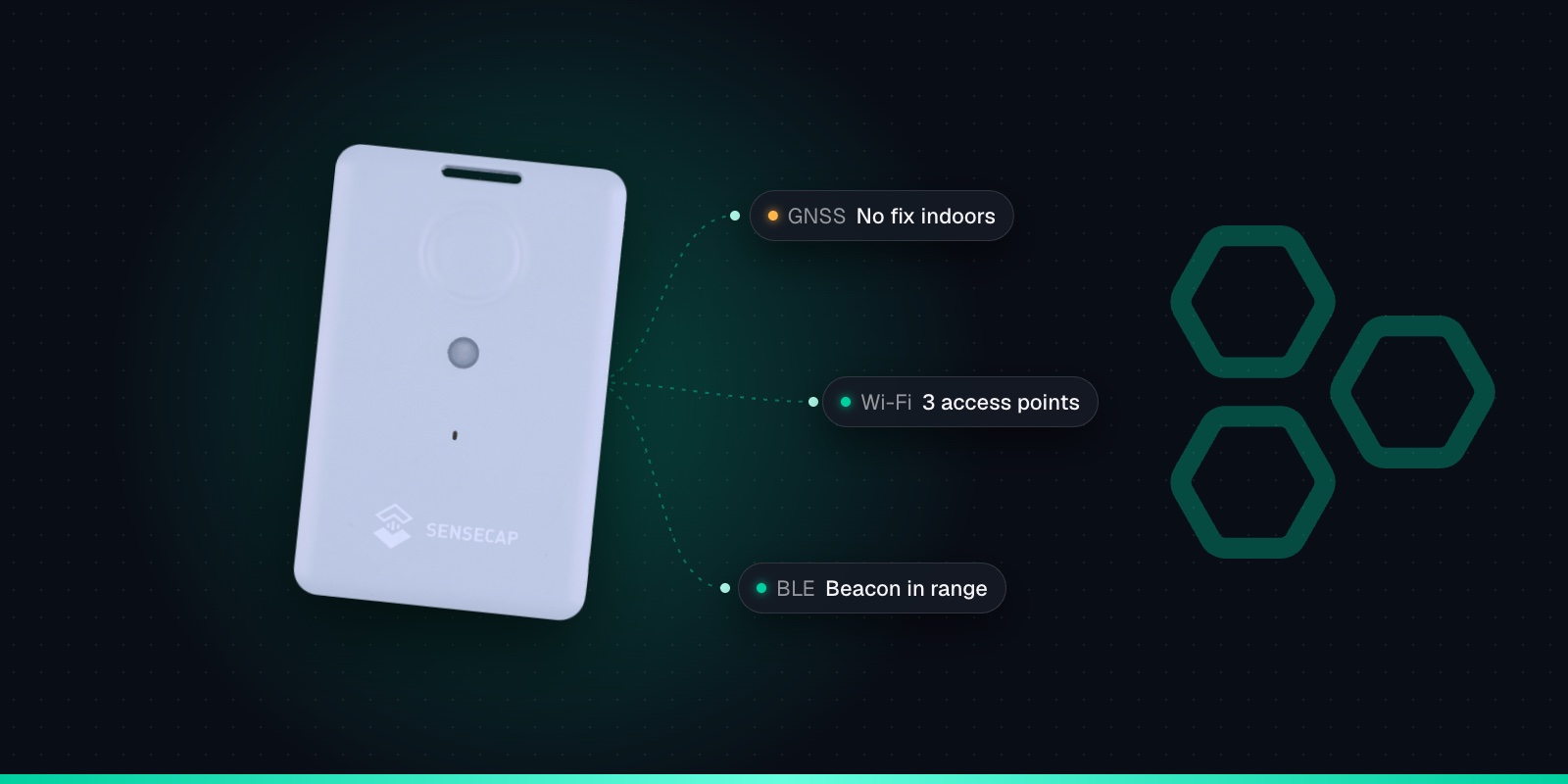
GNSS
Works out latitude and longitude on the tracker. The most precise option under open sky, and useless indoors. Seeed's 2.5m accuracy figure is a lab result in open space.
Wi-Fi
Listens for nearby access points and sends four of them (address and signal strength). It doesn't join any network. A lookup service then turns that list into a position.
Bluetooth
Scans for up to 8 Bluetooth beacons and sends the 3 strongest. Only useful if beacons are installed at known positions on your site.
The Wi-Fi and Bluetooth results are just lists of devices the tracker could hear. On their own they mean nothing to a map, which is why the SenseCraft app (formerly SenseCAP Mate) only shows GNSS positions, and why the console on a network server such as The Things Network doesn't either. Older guides suggest Semtech's LoRa Cloud to resolve them, but Semtech has shut its geolocation service down.
On Trackpac, the location engine resolves the T1000's Wi-Fi scans into a position automatically, so you don't need to buy a geolocation API key or write any code. Bluetooth is different: beacon positioning only works if someone has installed beacons and recorded where each one is. That's a project to plan with the Trackpac team rather than a setting to switch on, and it's the usual route for sites such as hospitals and large campuses.
The Eight Positioning Strategies
You choose how the tracker combines these methods with the positioning strategy setting. It's set in the SenseCraft app, or remotely with downlink command 86 followed by the code below (so 8601 for Wi-Fi only).
Code
Strategy
What it does
Good for
00
GNSS only
GPS and other satellite systems. The factory default.
Kit that is always outdoors
01
Wi-Fi only
Scans nearby Wi-Fi access points.
Kit that stays indoors
02
Wi-Fi + GNSS
Tries Wi-Fi first, and GNSS only if Wi-Fi fails.
Mostly indoors, sometimes out. Kinder to the battery
03
GNSS + Wi-Fi
Tries GNSS first, then Wi-Fi.
Mostly outdoors, sometimes in. Better accuracy outside
04
Bluetooth only
Scans for Bluetooth beacons.
Sites with beacons installed at known positions
05
Bluetooth + Wi-Fi
Bluetooth, then Wi-Fi.
Beacon sites with good Wi-Fi as a fallback
06
Bluetooth + GNSS
Bluetooth, then GNSS.
Beacon sites with outdoor areas
07
Bluetooth + Wi-Fi + GNSS
Tries each method in turn.
Mixed sites, at the cost of more battery
When every method in the chosen strategy fails, the tracker still sends a positioning status message saying which one timed out, so you know it's alive and reporting even without a position. All the downlink commands are in our T1000 configuration and downlink cheat sheet.
Why Locations Go Stale or Jump
Stale locations almost always mean the tracker can't get a new fix. The pin stays where it last had one, often the yard, loading bay or car park where the kit last saw the sky. Always check the time of the last position, not just where the pin is. A long uplink interval or a gap in LoRaWAN coverage can look the same, so rule those out too.
Jumps usually come from switching between methods. A GNSS fix is a measured position. A Wi-Fi fix is an estimate based on where those access points are believed to be. A tracker that sits near a doorway and alternates between the two can appear to move when it hasn't. Close to tall buildings, GNSS itself gets less accurate as signals bounce off walls.
Odd Wi-Fi results have their own causes. With only one or two access points in range, the result is coarse or there's none at all. Access points that move, such as a phone hotspot or a van's Wi-Fi, or a router that has been moved from another building, can drag the position somewhere it has never been.
Rough fallback positions can also appear on Trackpac. When there is no fix at all, Trackpac can optionally show an approximate position based on the gateways that heard the tracker. That is neighbourhood-level at best: useful to know roughly where a silent tracker is, not a substitute for GPS.
Recommended Setups for Indoor & Mixed Use
Always indoors: Wi-Fi only (01)
Equipment that lives in offices, shops, warehouses or labs. No wasted GPS searches, and Wi-Fi scans are cheap on the battery. Check there are Wi-Fi access points where the kit lives.
Mostly in, sometimes out: Wi-Fi + GNSS (02)
Tries Wi-Fi first and only uses GPS when Wi-Fi fails. Good on battery, but outdoors in a built-up area it will happily take a Wi-Fi fix rather than a more precise GPS one.
Mostly out, sometimes in: GNSS + Wi-Fi (03)
GPS first for the best outdoor accuracy, then Wi-Fi. The downside: every report made indoors pays for a GPS search first, so the battery runs down faster.
Need room-level? Plan it
Wi-Fi rarely tells you which room. That needs Bluetooth beacons at known positions, or a specialist fingerprinting service. Talk to us before buying hardware.
On fingerprinting: Seeed documents using the T1000 with Traxmate, a separate indoor positioning service that combines Wi-Fi and Bluetooth "fingerprints" recorded during a site survey with an Android app. Seeed describes it as suited to jobs needing around 2-10m median error. It's a specialist option with its own setup and costs, worth knowing about if room-level accuracy really matters.
Whichever strategy you pick, the positioning method has a big effect on battery life. Our T1000 battery life guide covers that side of the trade-off.
Placement Tips That Help
1
Get the first fix outside
Take a new tracker outdoors under open sky after switching it on, so it can set its clock from the satellites. Wait for a position to appear on the map before you take it inside.
2
Front face up, nothing on top
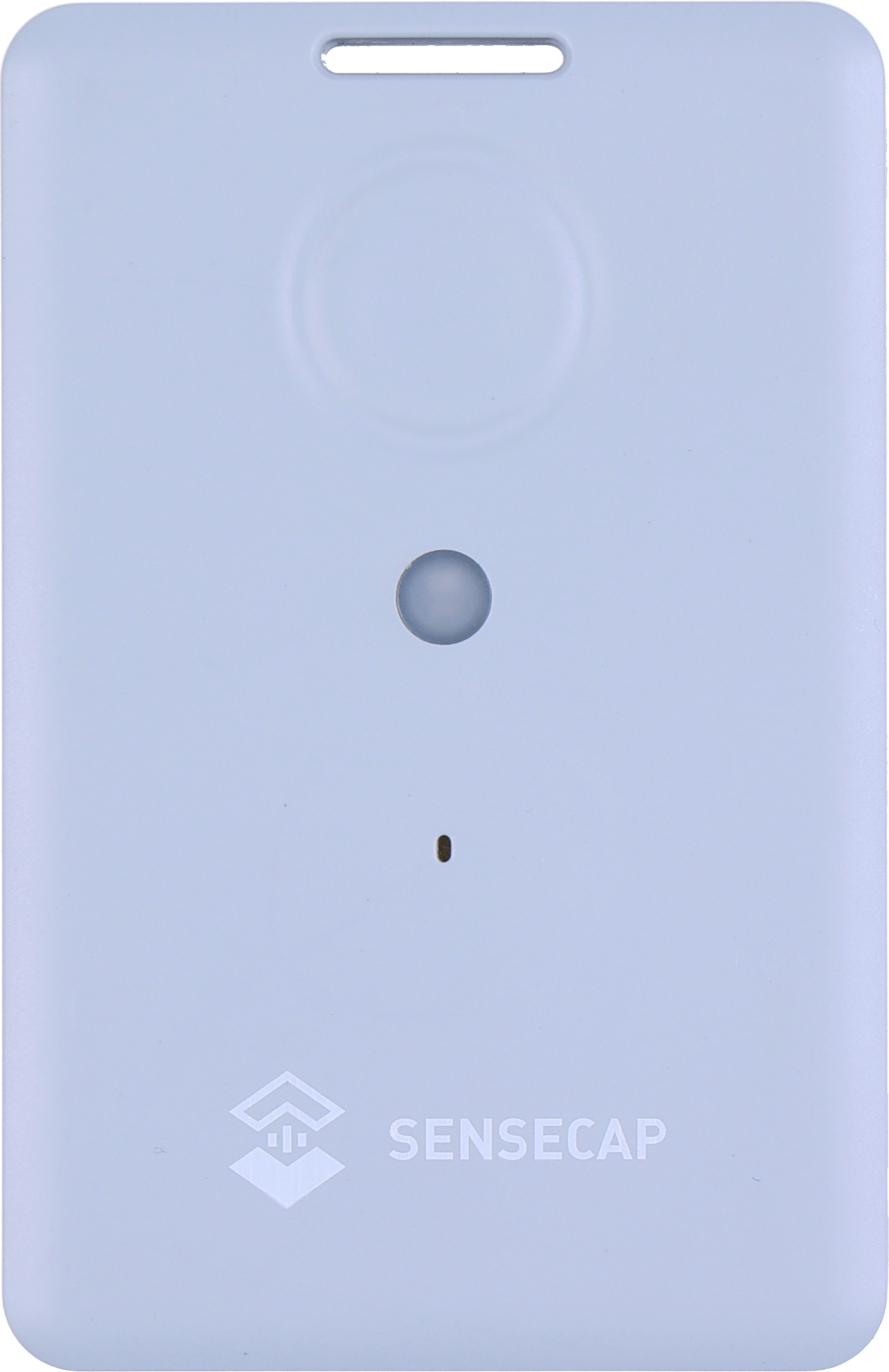
Seeed recommends mounting the tracker with its front face up and unobstructed. Under a pile of kit or face-down on a shelf, every signal is weaker.
3
Keep it away from metal
A steel tool box, cabinet or flight-case lid blocks GNSS and weakens the LoRaWAN signal too. Mount it outside the metal, or by a gap or vent where signal can escape.
4
Test where it will actually live
Put the tracker in its real spot and press the button once: it sends a position straight away. Check what comes up on the map before you walk away.
Don't Forget the LoRaWAN Signal
A position is only useful if the message carrying it reaches a gateway. Indoors, especially in steel-clad warehouses, basements and big concrete buildings, public LoRaWAN coverage that is fine in the street may not get in. A tracker that can't reach the network looks much like one that can't get a fix: nothing new on the map.
The Trackpac network roams onto Helium and other public LoRaWAN networks, so in many places you don't need a gateway of your own. For reliable coverage inside a large building, though, a gateway on site is usually the answer, and our LoRaWAN consultancy can help plan it. Before a big rollout, read what to check about LoRaWAN coverage.
If coverage is patchy, the T1000's data cache can help. It's off by default; once enabled, the tracker stores up to 1,000 records that weren't acknowledged and sends them later, a few at a time, so gaps in the history can fill in after the tracker gets back in range. If you're ready to try Wi-Fi positioning on your own trackers, create a Trackpac account and add a T1000 with its keys.
Get Started
Track your T1000 indoors as well as out
Trackpac resolves the T1000's Wi-Fi scans into positions for you, so trackers inside buildings still show up on the map.
Works with the T1000-A and T1000-B. Add one with its keys in a couple of minutes.
Connectivity through the Trackpac network, which roams onto Helium, so there's no network server to run.
Dashboard, alerts and data storage from £15 / €18 per tracker per year.
Why does my SenseCAP T1000 not get a GPS fix indoors?↓
GPS (GNSS) needs to receive signals from satellites, and roofs, floors, walls and metal cladding block them. Seeed's own user guide says GNSS positioning needs to be used outdoors. Indoors the T1000 searches until its GNSS timeout runs out (60 seconds by default) and then sends a positioning status message saying the GNSS search timed out, instead of a position. For trackers used indoors, switch the positioning strategy to Wi-Fi only or Wi-Fi + GNSS.
Why is my SenseCAP T1000 location not updating?↓
Usually because the tracker can't get a new fix, so the map keeps showing the last position it managed to get. A T1000 on the default GNSS-only setting that is brought indoors will often keep showing the car park or loading bay where it last saw the sky. Check the time of the last position, not just the pin. Other causes are a long uplink interval, the tracker being out of LoRaWAN coverage, or a brand-new tracker that has never been outside to set its clock from the satellites.
Can the SenseCAP T1000 track location indoors?↓
Yes, within limits. Indoors it can scan for Wi-Fi access points or Bluetooth beacons instead of using GPS. Wi-Fi positioning needs access points nearby and a service to look them up; Trackpac's location engine does this automatically. Bluetooth positioning needs beacons installed at known positions. Neither is as precise as GPS under open sky, and room-level accuracy normally needs a planned beacon installation.
How accurate is Wi-Fi positioning on the SenseCAP T1000?↓
Seeed doesn't publish a general accuracy figure, because it depends on the surroundings. With plenty of known access points nearby, as in most offices and town-centre buildings, the result is usually good enough to tell which building or part of a site a tracker is in. With only one or two access points, or none, the result is coarse or there is no position at all. Access points that move, such as phone hotspots or vehicle Wi-Fi, can pull the position somewhere wrong.
Do I need LoRa Cloud for T1000 Wi-Fi positioning?↓
No, and you can't use it: Semtech has shut down LoRa Cloud's geolocation services. The T1000 sends the addresses and signal strengths of nearby Wi-Fi access points, and your platform has to turn those into a position using a Wi-Fi geolocation service. Trackpac's location engine does this for every T1000 on Trackpac, so you don't need your own API key or any code.