How to Connect the SenseCAP T1000 to The Things Network
26th October 2026•By Neil Skoglund
T1000 Guide
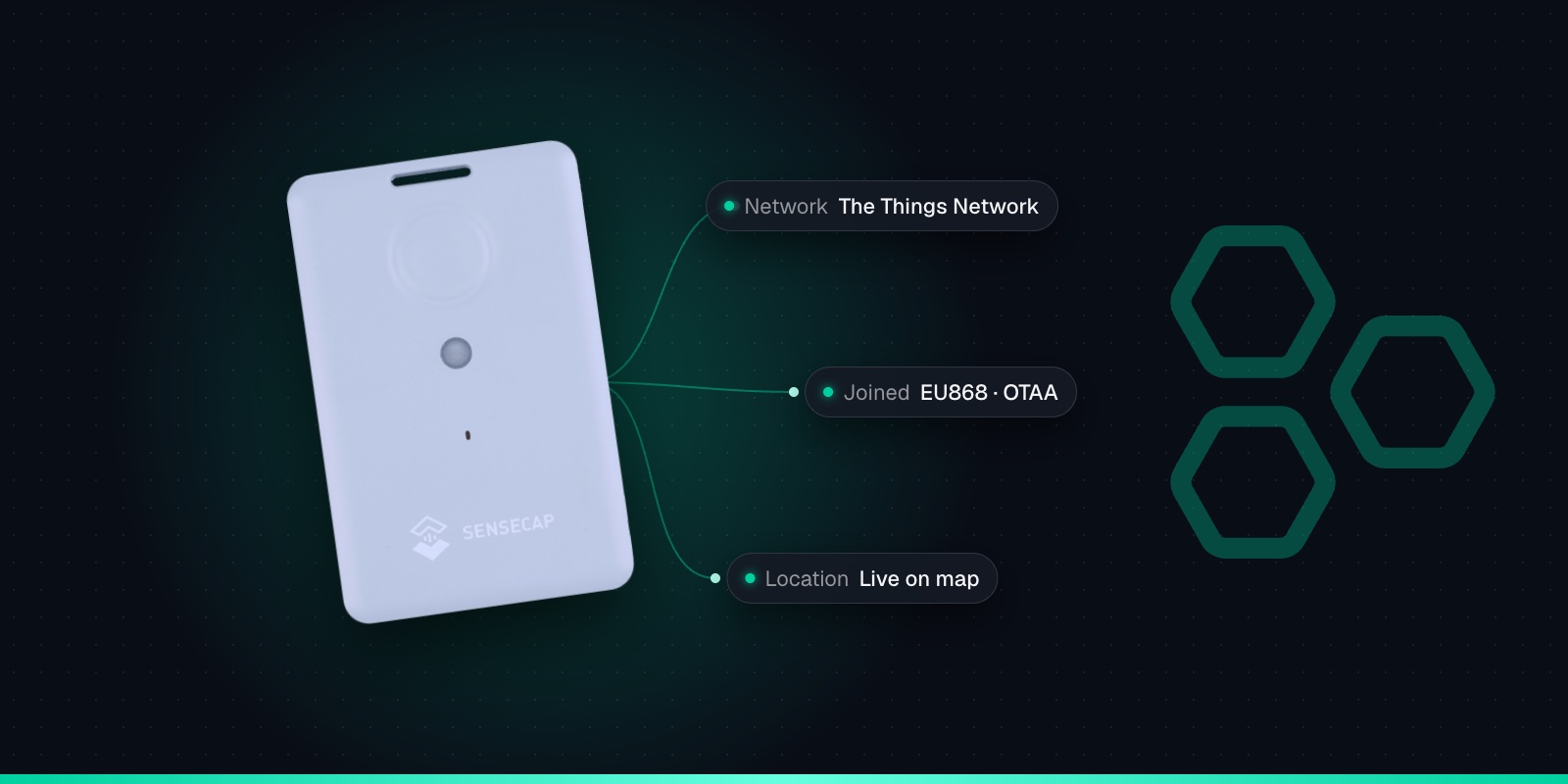
The SenseCAP T1000 is a popular tracker to run on The Things Network (TTN), and getting it to join is not hard once you know where Seeed's defaults trip people up. Getting from "it's joined" to "I can see where it is" is a different matter, and it's where most people get stuck.
This guide walks through the whole process in the TTN Console: setting the right platform in Seeed's app, registering the tracker from the device repository, checking the uplinks and decoding them. Then it covers the gotchas, and your options for getting the tracker's location onto a map with alerts. It applies to the SenseCAP T1000-A and T1000-B.
Before You Start
A TTN account and a TTN gateway within range, either your own or a community one. The tracker has no SIM, so without a gateway nearby it can't join.
The tracker charged on its magnetic cable. A full charge takes about 2 hours.
The SenseCraft app (formerly SenseCAP Mate) on your phone. Seeed has renamed it, and older guides and screenshots still use the old name.
Your region. In the UK and Europe that's EU868, which is also the tracker's default.
Ideally, current firmware. Seeed lists v2.8 as the latest, and updates are done over Bluetooth in the same app.
Step 1: Set the Platform in the SenseCraft App
This is the step that catches most people. The tracker ships set to "SenseCAP for The Things Network", which is Seeed's own server and only works with SenseCAP gateways. It is not your TTN account, even though the name suggests it.
1
Switch it on and connect
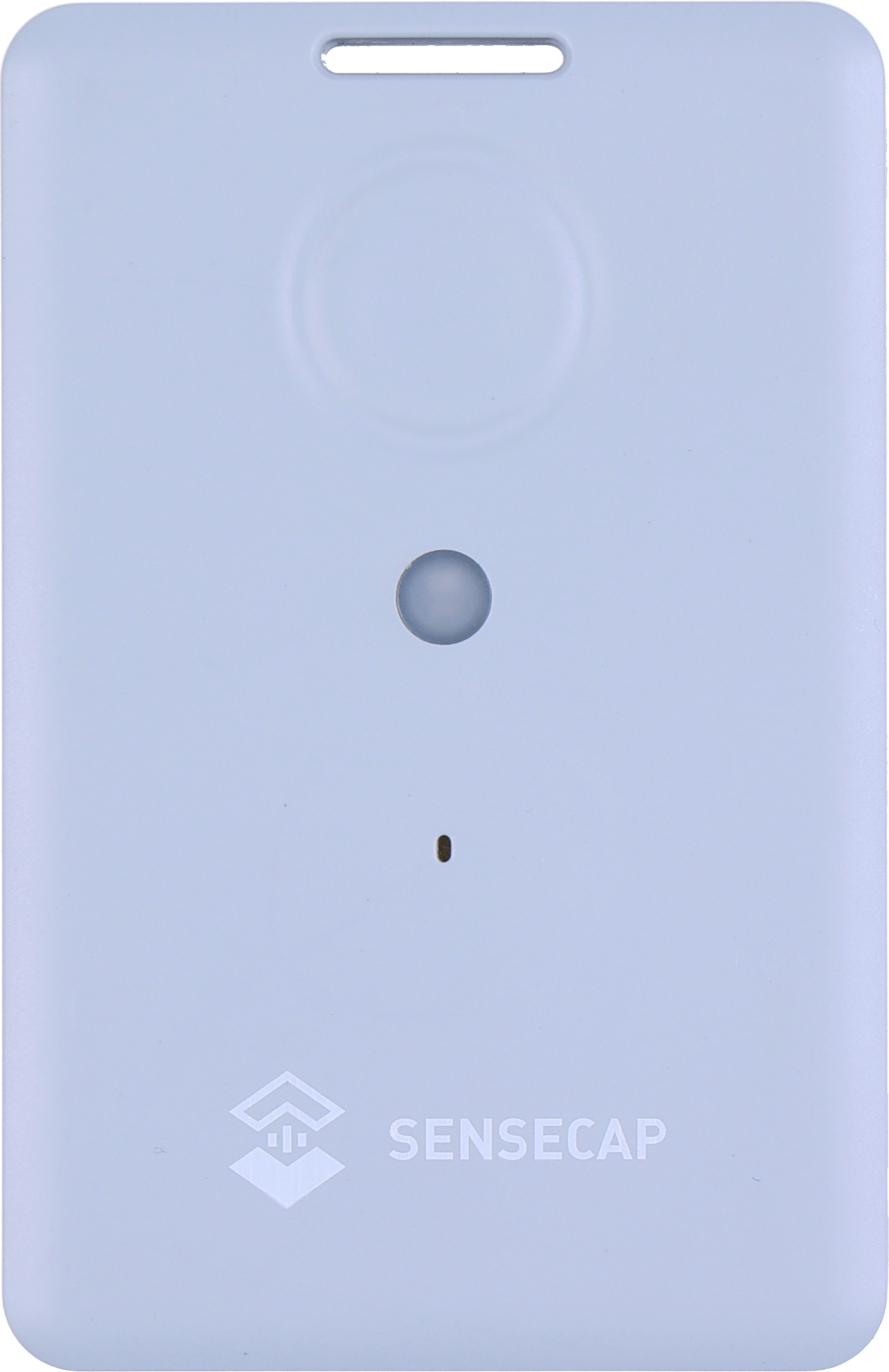
Hold the button for 3 seconds. A rising tune plays and the LED flashes once a second while Bluetooth pairing is open. In the SenseCraft app, scan the QR code on the tracker or pick it by serial number.
2
Change Platform to "The Things Network"
In the LoRaWAN settings, change Platform from "SenseCAP for The Things Network" to plain "The Things Network". Set the frequency plan to EU868 if you're in the UK or Europe. Leave ADR on, which is the default.
3
Copy the keys
Copy the Device EUI, APP EUI and APP Key shown in the app. These are the keys for the platform you just chose. The keys printed on the label are for Seeed's own platform and won't work on your TTN application.
4
Set the interval and send
The default is periodic mode with one report every 60 minutes. For testing you can shorten it, but not below about 4 minutes on EU868. Tap Send to save the settings to the tracker.
Step 2: Register the Tracker in the TTN Console
The T1000 is in the LoRaWAN Device Repository, which saves you setting the LoRaWAN version and adding a payload formatter by hand.
1
Create an application
In the TTN Console, open Applications and create one, for example "yard-trackers". One application can hold all your T1000s.
2
Register an end device from the repository
Choose Register end device, then "Select the end device in the LoRaWAN Device Repository". Pick brand SenseCAP and model SenseCAP T1000 Tracker A/B.
3
Choose the frequency plan
Choose the plan that matches the tracker and your gateway: a Europe 863-870 MHz (EU868) plan in the UK and Europe.
4
Paste the keys
TTN calls the AppEUI the JoinEUI. Paste the APP EUI there, then the DevEUI and AppKey from the app. Give the device a sensible ID such as "t1000-generator-03" and register it.
If you register manually instead, use LoRaWAN 1.0.4, OTAA and Class A, which match the repository profile (regional parameters RP002-1.0.3). The T1000 doesn't support Class B or C.
Step 3: Join and Check the Uplinks
Close the Bluetooth connection in the app and the tracker starts its LoRaWAN join. The LED "breathes" while it is trying. A quick flash and a short tune mean it has joined.
Open the device in the TTN Console and watch the Live data tab. You should see the join, followed by uplinks on FPort 5. The first message after joining is a device status packet. Location reports follow on your chosen interval, and a single press of the button sends one straight away, with a beep when it's delivered.
Take the tracker outside for its first fix. GNSS needs open sky, and on first use the tracker also sets its clock from the satellites. Indoors the satellite search times out and you'll see a positioning status packet reporting a GNSS timeout instead of a position. That means the tracker is working and simply can't see the sky. Our guide to T1000 locations indoors explains the options.
Step 4: Decode the Payload
If you registered from the device repository, TTN has already applied the repository's payload formatter. Seeed also publishes its own TTN decoder on GitHub, which you can paste in as a custom JavaScript formatter if you registered manually.
Both formatters return a list of measurements, each with an ID. Longitude is measurement 4197 and latitude 4198. A Wi-Fi scan comes through as measurement 5001 and a Bluetooth scan as 5002. Battery level, events and, on the T1000-A, temperature and light are decoded too. That is all useful data, but it is only data. The next section explains why it won't turn into a map on its own.
The Gotchas
If something isn't working, it is usually one of these.
The default platform won't work on your TTN
Out of the box the platform is "SenseCAP for The Things Network", which only works with SenseCAP gateways. Change it to "The Things Network" before you do anything else.
Keys change when you change platform
The DevEUI stays the same, but the tracker generates a new AppEUI and AppKey for public platforms. Copy them after setting the platform, not before, and not from the label.
The console won't plot positions
The decoders output latitude and longitude as measurements, not the location fields TTN maps. You'll see numbers in Live data, but no pin on a map.
Wi-Fi and Bluetooth are just MAC addresses
A Wi-Fi scan sends four access point MACs with signal strengths. Something has to look those up to get a position. Bluetooth needs beacons at known positions.
LoRa Cloud is gone
Older guides send Wi-Fi scans to Semtech's LoRa Cloud. Semtech has shut down its geolocation services, so those steps no longer work.
Duty cycle and fair use
Seeed advises not going below about 4 minutes on EU868. Shorter intervals queue data in memory and skew timestamps, and TTN has a fair use policy for its community network.
Frequency plan must match the gateway
The tracker defaults to EU868. If the TTN device or your gateway uses a different plan, the join simply never completes.
Repeated joins can cause DevNonce errors
Lots of rejoins while testing can exhaust the DevNonce and the network server rejects the join. Seeed support can provide firmware to reset it.
One more to know about: the tracker can cache up to 1,000 records when it can't reach the network and resend them later, but the cache is off by default. Turn on "GNSS Data Cache" in the app if your trackers often go out of coverage. For every setting and downlink, see the T1000 configuration and downlink cheat sheet.
Getting Your T1000 onto a Map
TTN is a network server: it gets your tracker's messages from the gateways to you. It isn't a tracking application. To see positions on a map, resolve Wi-Fi scans, draw geofences and get an SMS when something moves, you need something on top. You can build that yourself with a geolocation API, a database and a mapping library, or use a platform that already does it. If you use Trackpac, there are two ways in.
Option 1: Move the tracker onto Trackpac
The simplest route is to take TTN out of the picture. The Trackpac network is a private LoRaWAN network with roaming onto Helium and other public LoRaWAN networks, so where there is coverage you don't need a gateway or network server of your own. Trackpac decodes every T1000 message, puts GNSS fixes on a live map, resolves Wi-Fi scans into positions with its own location engine (no Google API key needed) and alerts on SOS, button presses, movement, geofences, temperature, light and battery. Once the tracker is on Trackpac, delete it from your TTN application so only one network server holds its keys.
1
Charge it and switch it on
Charge the tracker on its magnetic cable, then hold the button for 3 seconds. A rising tune plays and the LED flashes once a second while it waits for Bluetooth.
2
Connect with the SenseCraft app
Open Seeed's SenseCraft app (formerly SenseCAP Mate), scan the QR code on the tracker and open its LoRaWAN settings. Set the frequency plan for your region: EU868 in the UK and Europe.
3
Choose Other Platform and copy the keys
Change Platform to "Other Platform" and set the APP EUI to 545241434B504143, as Seeed's own Trackpac guide recommends. Copy the Device EUI, APP EUI and APP Key, then tap Send.
4
Add it in Trackpac
In Trackpac, go to Devices, tap +, choose "Enter Keys Manually", paste the three keys and pick SenseCAP T1000 as the device type. Trackpac's network roams onto Helium, so you don't need your own console or network server.
5
Get its first fix outside
Take the tracker outdoors for its first GPS fix: it needs open sky to set its clock from the satellites. A quick flash and a short tune mean it has joined.
If your trackers have to stay on TTN, for example because you run your own gateways on it or other systems already read from it, they can be added to Trackpac as self-hosted devices. You keep TTN as the network server and Trackpac provides the map, history, geofences and alerts. Get in touch and we'll set up the integration with you. If you're weighing up TTN against other networks, our UK LoRaWAN coverage guide and the T1000 on Helium guide are worth a read.
Get Started
Joined TTN but can't see it on a map?
Add your T1000 to Trackpac and see GNSS and Wi-Fi positions on a live map, with geofences and alerts by email, SMS or push.
Works with the T1000-A and T1000-B. Add one with its keys in a couple of minutes.
Connectivity through the Trackpac network, which roams onto Helium, so there's no network server to run.
Dashboard, alerts and data storage from £15 / €18 per tracker per year.
Why is my SenseCAP T1000 not joining The Things Network?↓
The most common cause is the platform setting. The T1000 ships set to SenseCAP for The Things Network, which only works with SenseCAP gateways. Change Platform to The Things Network in the SenseCraft app, then copy the new keys into the TTN console, because the keys change when you change platform. After that, check the frequency plan matches your gateway (EU868 in the UK and Europe), that a TTN gateway is in range, and that the DevEUI, JoinEUI and AppKey were pasted correctly.
Why doesn't the TTN console show my T1000 on a map?↓
The T1000 payload formatters, both the one in the TTN device repository and Seeed's own, output latitude and longitude as measurement values rather than the location fields TTN uses to draw a map. The console shows the decoded numbers but doesn't plot them. Wi-Fi and Bluetooth results are just lists of MAC addresses and signal strengths, which need a resolver to become a position. To see the tracker on a map you need an application on top, such as Trackpac.
Which payload formatter should I use for the SenseCAP T1000 on TTN?↓
If you register the tracker from the LoRaWAN Device Repository (brand SenseCAP, model SenseCAP T1000 Tracker A/B), TTN applies the repository's payload formatter for you. Seeed also publishes a TTN decoder on GitHub in its SenseCAP-Decoder repository if you register the device manually or want to compare. Both decode the same packets and output a list of measurements.
What uplink interval should I use for a T1000 on The Things Network?↓
Seeed advises not going below about 4 minutes on EU868 because of the 1% duty cycle limit, and The Things Network also has a fair use policy for its community network. For most asset tracking an interval of 30 to 60 minutes is plenty and gives far better battery life: Seeed's FAQ gives about 3.5 months at hourly GNSS fixes on EU868. On a T1000-A, event mode can report sooner when the tracker starts moving.
Can I keep my T1000 on TTN and still use Trackpac?↓
Yes. If a tracker has to stay on your own network server, such as The Things Network or ChirpStack, it can be added to Trackpac as a self-hosted device. Get in touch and we'll set up the integration with you. If you don't need TTN, it is simpler to move the tracker onto the Trackpac network, which roams onto Helium and other public LoRaWAN networks.