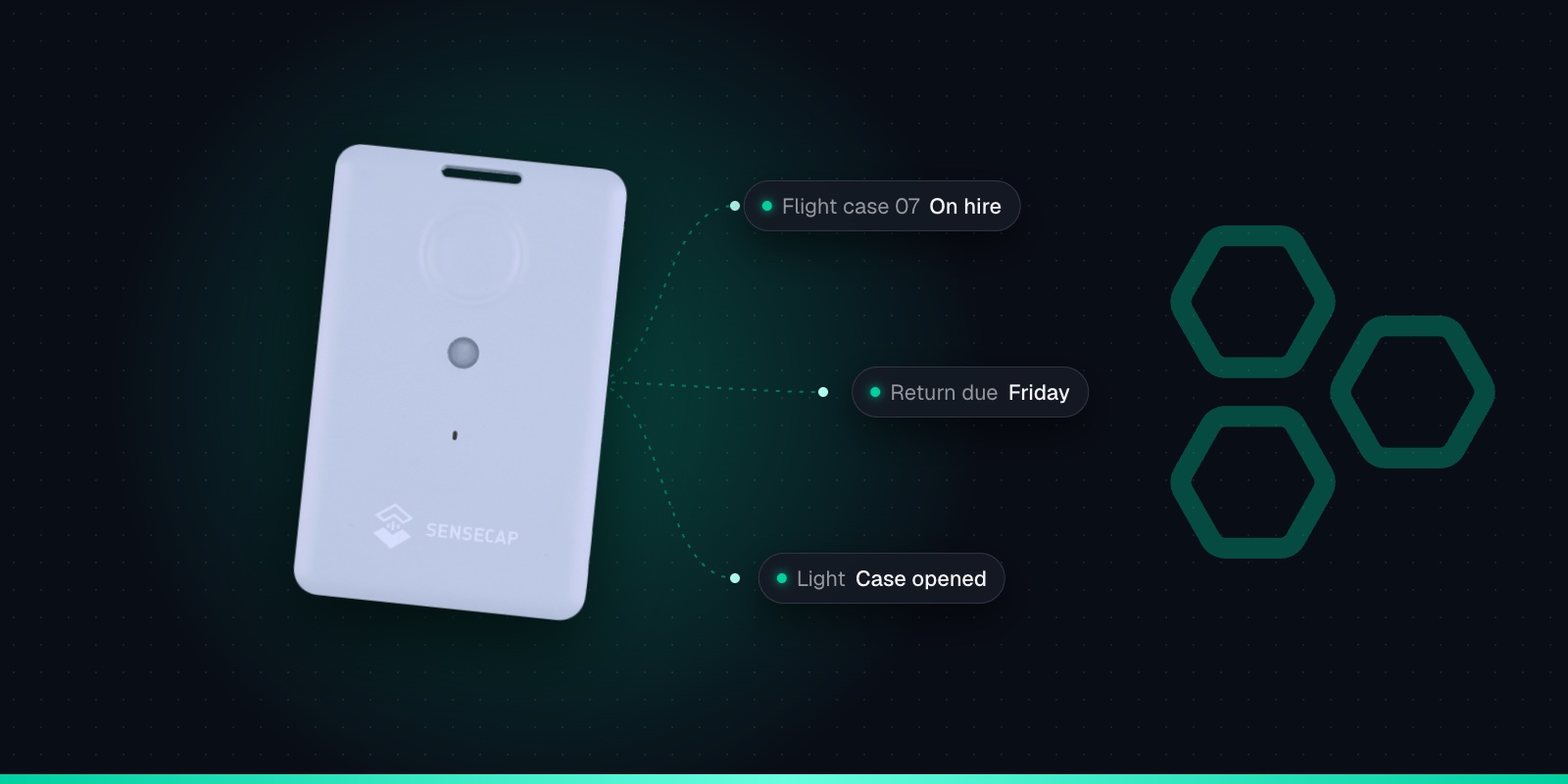
The SenseCAP T1000 has a lot of settings for something the size of a credit card: platforms, work modes, events, positioning strategies and a dozen downlink commands. Seeed documents them all, but across a user guide, several wiki pages and an FAQ. This page puts the ones you actually need on one sheet.
It covers the T1000-A and T1000-B and is based on Seeed's T1000-A/B User Guide V1.3 and wiki. Settings are made in the SenseCraft app (formerly SenseCAP Mate) over Bluetooth, and most can be changed later by downlink once the tracker is out in the field. For the hardware itself, see the SenseCAP T1000 sensor page.
Button, Sounds & Lights
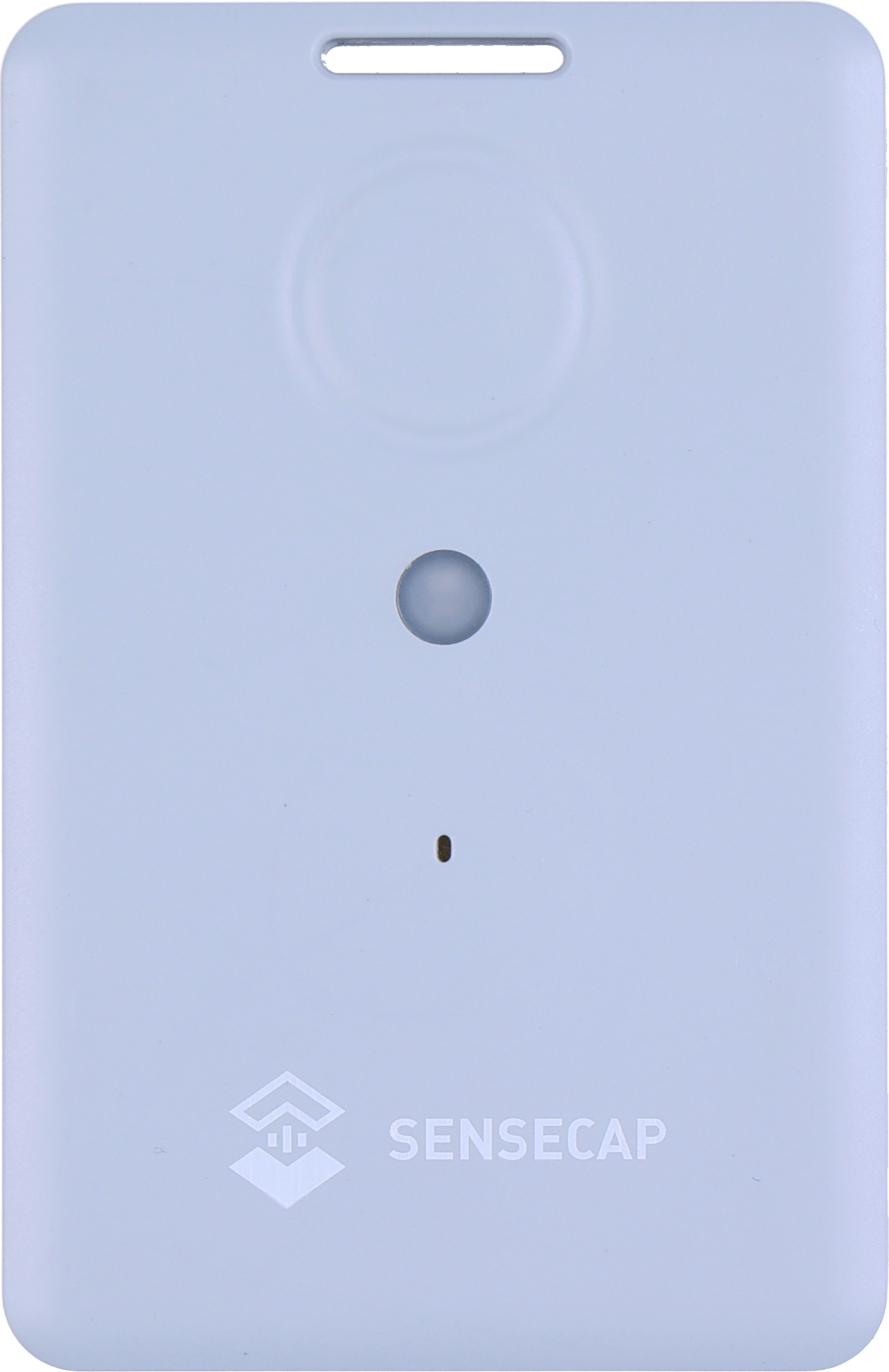
The T1000 has a single button, an LED and a buzzer.
Button
What happens
Hold 3 seconds
Switches on with a rising tune. If already on, starts Bluetooth pairing. The LED flashes once a second while it waits for the app.
Hold 9 seconds
Switches off with a descending tune.
Press once
Sends position (and sensor data, if enabled) straight away, flagged as a "press once" event. Beeps when the upload succeeds.
Press twice
Starts SOS. In the default continuous mode it uploads every minute and stops after 30 uploads, with a flashing LED and alarm. Double-press twice to cancel.
Hold button, plug in cable, release
Forces a reboot (T1000-A and T1000-B).
While joining the network, the LED "breathes"; a quick flash and a short tune mean it has joined. On charge, the LED flashes every 3 seconds and stays on when full. Fast flashing on charge means the temperature is outside 0-45 °C, the voltage is low or the cable isn't seated properly.
Connecting with the SenseCraft App
1
Hold the button for 3 seconds
The LED flashes once a second: the tracker is ready to pair.
2
Add it in the app
Scan the QR code on the tracker, or pick it by serial number.
3
Choose Quick or Advanced Configuration
Quick covers the frequency plan and interval. Advanced gives you everything in the tables below.
4
Tap Send, then exit Bluetooth
Nothing changes until you tap Send. Leaving Bluetooth mode starts the LoRaWAN join.
Platform Options & Keys
The Platform setting decides which network the tracker expects, and which keys it uses. Get this right before anything else.
Platform
Use it for
Keys
SenseCAP for The Things Network
The default. Seeed's own platform; only works with SenseCAP gateways.
Fixed, as printed on the label
SenseCAP for Helium
Seeed's own Helium console.
Fixed, as printed on the label
Helium
Your own Helium console.
New AppEUI and AppKey generated
The Things Network
Your own TTN or The Things Stack application.
New AppEUI and AppKey generated
Other Platform
Any other network server, including Trackpac.
New AppEUI and AppKey generated
Two things catch people out. First, the default platform only works with Seeed's own SenseCAP gateways, so on your own TTN, Helium, ChirpStack or Trackpac setup you must change it. Second, choosing a non-SenseCAP platform generates a new AppEUI and AppKey (the Device EUI never changes), so copy the keys after changing the platform, not before.
Must match your network. One SKU covers EU868, US915, AU915 (sub-band 2 by default), AS923, KR920 and IN865.
Activation
OTAA
ABP can also be selected.
ADR
On
Seeed recommends leaving it on.
Packet policy
Confirmed (1C)
Each uplink asks for an acknowledgement.
Work mode
Periodic
See work modes below.
Uplink interval
60 min
Periodic mode. Don't go below about 4 min on EU868.
Heartbeat interval
720 min
Sent only if nothing else was uploaded.
Temp & Light upload
Off
T1000-A only. Turn on to report temperature and light.
SOS mode
Continuous
Or single: one upload with a 3-second alarm.
Positioning strategy
GNSS only
See positioning strategies below.
GNSS timeout
60 s
Up to 120 s. Seeed advises against raising it.
GNSS data cache
Off
Stores up to 1,000 unacknowledged records and resends them later.
Beacon scan timeout & UUID filter
-
For Bluetooth beacon positioning. The filter takes up to 16 bytes.
Restore All Settings in the app puts everything back to these defaults.
Work Modes
Mode
Code
Behaviour
Standby
00
Heartbeat with battery level only, every 720 min by default. Ask for a position with downlink 85.
Periodic
01
Position, plus sensor data if enabled, every uplink interval (60 min by default). Seeed calls it "recommended for most scenarios".
Event
02
Reports on a slow interval (1 to 10,080 min, default 60) and more often when an event fires. Seeed warns power consumption "increases a lot".
The heartbeat only goes out if nothing else has been sent within the heartbeat interval, so in periodic mode with an hourly interval you won't normally see one. How the mode and interval affect the battery is covered in our T1000 battery life guide.
Event Types & Defaults
Events are reported as flags in each uplink. The hex value is the bit that is set when that event fires.
Event
Flag
Settings
Start moving
0x01
Motion event, off by default. Threshold 30mg. Has its own uplink interval while moving.
End movement
0x02
Declared after 2 minutes below the motion threshold.
Motionless
0x04
Motionless timeout, 360 min.
Shock
0x08
Off by default. Threshold 300mg.
Temperature
0x10
Sampled every 30 s. Rule: at or below a minimum, at or above a maximum, outside a range or inside a range. Own uplink interval.
Light
0x20
Same rules as temperature, with thresholds in % (relative brightness, not lux).
SOS
0x40
Double press, or downlink 8D01.
Press once
0x80
Single press.
The movement, shock, temperature and light events depend on the T1000-A's accelerometer and sensors. The T1000-B has none of them, so if you want movement-triggered alerts, buy the A. Trackpac decodes all of these events and can alert on each one.
Positioning Strategies
Code
Strategy
Behaviour
00
GNSS only
The default.
01
Wi-Fi only
02
Wi-Fi + GNSS
Wi-Fi first, GNSS if Wi-Fi fails.
03
GNSS + Wi-Fi
GNSS first, then Wi-Fi.
04
Bluetooth only
Needs beacons at known positions.
05
Bluetooth + Wi-Fi
06
Bluetooth + GNSS
07
Bluetooth + Wi-Fi + GNSS
Tries each in turn.
Wi-Fi and Bluetooth results are lists of nearby devices, not positions, so they need resolving by your platform. Trackpac resolves the Wi-Fi scans for you. Which strategy to pick, and why GNSS fails indoors, is covered in why your T1000 shows the wrong location indoors.
Downlink Commands
All T1000-A/B downlinks go on FPort 5, as hex. The first byte is the command; any bytes after it are the value. Multi-byte values are big-endian.
Command
Does
Data
Example
80
SOS mode
00 single, 01 continuous
8001
81
Uplink intervals
Heartbeat, periodic and event intervals in minutes, 2 bytes each. 0000 keeps the current value.
810000001E0000
82
Buzzer
00 off, 01 on
8201
83
Work mode
00 standby, 01 periodic, 02 event
8301
84
Event parameters
31 data bytes covering motion, motionless, shock, temperature and light. Use the layout in Seeed's user guide.
-
85
Request a position now
No data
85
86
Positioning strategy
00 to 07, as in the table above
8602
87
Read back event parameters
No data
87
88
Request device status
No data
88
89
Reboot and rejoin
No data. Seeed says use with caution.
89
8C
Temperature & light sensors
00 off, 01 on
8C01
8D
SOS alarm
00 stop, 01 start
8D00
The interval command, 81, is the one most people need. Write each interval in minutes as four hex digits, and use 0000 for any interval you want to leave alone:
810000003C0000: periodic interval 60 minutes.
810000001E0000: periodic interval 30 minutes.
81000000000168: event-mode interval 360 minutes.
8105A000000000: heartbeat every 1,440 minutes (once a day).
Check your firmware before using 81
The 7-byte format above is from Seeed's current guide (V1.3). Older firmware and older guides used a shorter format for the same command. Check which firmware your trackers run (the latest Seeed lists is v2.8), and test on one tracker before sending it to a fleet. On EU868, don't go below about 4 minutes: the radio duty-cycle limit means faster intervals queue up and timestamps drift.
How Downlinks Reach the Tracker
The T1000 is a LoRaWAN Class A device. It only listens for a downlink for a moment after it sends an uplink, so a command you queue sits on the network server until the tracker next reports. On an hourly interval that can be up to an hour; in standby mode, until the next heartbeat. Seeed puts it simply: a command takes effect the next time the device wakes up to upload data.
If you have the tracker to hand, press the button once. It sends an uplink straight away, which opens a window for the command.
Send one change at a time and check it worked before sending the next. 87 reads back the event parameters and 88 requests a device status message.
Be sparing with 89 (reboot and rejoin). Every rejoin uses up a join counter, which matters for the DevNonce issue below.
For trackers on the Trackpac network, Trackpac can send these downlinks for you, so you can change an interval, mode or positioning strategy without fetching the tracker. On another network server, use its downlink tool with FPort 5. To try it on your own trackers, create a Trackpac account and add a T1000 with its keys.
Templates for Batch Configuration
Setting up more than a handful of trackers by hand gets tedious. The SenseCraft app lets you save a configuration as a template and apply it to other trackers, and templates can be shared by link or file, so a colleague can configure trackers the same way. You still need each tracker's own keys to add it to your network; with Other Platform selected, each tracker shows its own Device EUI and AppKey in the app.
Firmware Updates
Firmware is updated over Bluetooth from the SenseCraft app. Seeed recommends the "Via Cloud" option; upgrading from a local file is only for when Seeed support tells you to. The latest version Seeed lists is v2.8 (September 2025), which improves LoRaWAN stability. Updating also fixes the wrong-timestamp issue seen on some older trackers.
If an update fails, the tracker drops into DFU mode and appears in the app as SENSECAP_GR_DFU_XXXX. It leaves that mode by itself after 3 minutes, or you can recover it by uploading the firmware file.
DevNonce Errors
Each OTAA join uses a counter called the DevNonce. A tracker that has rejoined many times, through repeated reboots or rejoin commands, can run into DevNonce errors on the network server and fail to join. Seeed's FAQ says Seeed support can provide special firmware to reset it. The best fix is avoiding it: don't reboot or rejoin trackers more than you need to.
Get Started
Change T1000 settings without fetching the tracker
On Trackpac you get maps, geofences and alerts for every T1000, and downlinks to trackers on the Trackpac network so you can adjust them in the field.
Works with the T1000-A and T1000-B. Add one with its keys in a couple of minutes.
Connectivity through the Trackpac network, which roams onto Helium, so there's no network server to run.
Dashboard, alerts and data storage from £15 / €18 per tracker per year.
How do I change the uplink interval on a SenseCAP T1000?↓
Either in the SenseCraft app (formerly SenseCAP Mate) over Bluetooth, or remotely with downlink command 0x81 on FPort 5. In Seeed's current user guide (V1.3) the command is 81 followed by the heartbeat, periodic and event intervals in minutes, each as 2 bytes of hex, with 0000 meaning keep the current value. So 810000003C0000 sets the periodic interval to 60 minutes and leaves the others alone. Older firmware and guides used a shorter format, so check your firmware version and test on one tracker first. On EU868, Seeed advises not going below about 4 minutes.
What FPort does the SenseCAP T1000 use for downlinks?↓
FPort 5. All of the T1000-A/B downlink commands in Seeed's user guide are sent on FPort 5, and the tracker's normal uplinks use FPort 5 too. Commands are hex bytes starting with a command byte from 0x80 to 0x8D, for example 8301 to switch to periodic mode or 8602 to use Wi-Fi then GNSS positioning.
Why hasn't my SenseCAP T1000 applied the downlink I sent?↓
The T1000 is a LoRaWAN Class A device, so it only listens for a downlink briefly after it sends an uplink. A queued command is delivered after the tracker's next uplink and takes effect then. With an hourly interval that can take up to an hour, longer in standby mode. Pressing the button once makes the tracker send an uplink straight away, which gives the network a chance to deliver the command. Also check the command is on FPort 5 and in the right format for your firmware.
How do I reset a SenseCAP T1000?↓
There are three different resets. To force a reboot of a T1000-A or T1000-B, hold the button, connect the charging cable, then release the button. To put the LoRaWAN settings back to Seeed's SenseCAP platform, use Restore LoRa Configuration in the SenseCraft app. To return every setting to factory defaults, use Restore All Settings in the app. A reset restores the tracker's original keys, so if you had changed the platform you will need to set it again.
How do I update the firmware on a SenseCAP T1000?↓
Connect to the tracker in the SenseCraft app (formerly SenseCAP Mate) over Bluetooth and use the firmware upgrade option. Seeed recommends the Via Cloud option; upgrading from a local file is only for when Seeed support advises it. The latest version Seeed lists is v2.8, released in September 2025 to improve LoRaWAN stability. If an upgrade fails, the tracker shows up as SENSECAP_GR_DFU_XXXX, leaves that mode on its own after 3 minutes, or can be recovered by uploading the firmware file.