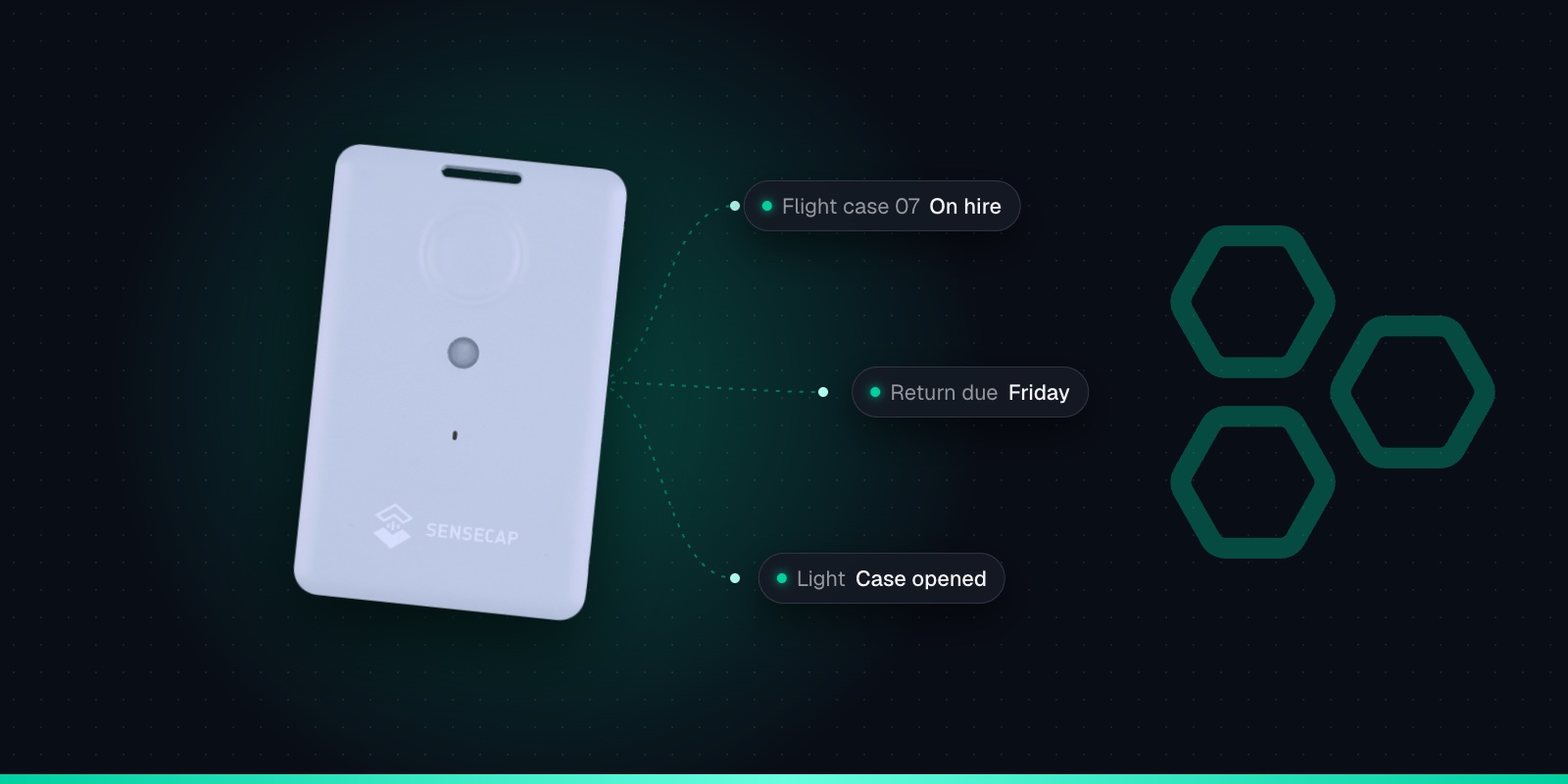
Every SenseCAP T1000 owner meets Seeed's app first. You need it to switch the tracker on, set its region and get its keys. It can also show where the tracker is, so it's reasonable to ask whether you need anything else.
The short answer: the app and a tracking platform such as Trackpac do different jobs, and most people end up using both. This guide explains what Seeed's app and cloud are for, where they stop, what a tracking platform adds, and how the two fit together. A note on names: Seeed now calls the app the SenseCraft app, formerly SenseCAP Mate. Lots of guides and forum posts still use the old name, and we use both here.
What the SenseCraft App (SenseCAP Mate) Does
The app is primarily a configuration tool. You hold the T1000's button for 3 seconds, the tracker opens a Bluetooth connection, and the app reads and writes its settings. There is a Quick Configuration for just the frequency plan and interval, and an Advanced Configuration for everything else.
"Everything else" is a lot. The platform and frequency plan. The LoRaWAN keys and ADR. The work mode (standby, periodic or event) and its intervals. Motion, shock, temperature and light events and their thresholds. The positioning strategy, GNSS timeout and data cache. The SOS mode. Firmware updates also go through the app. For fleets, you can save a configuration as a template and apply it to other trackers, or share it by link or file.
The app does this job well, and no tracking platform replaces it. The catch is that it works one tracker at a time, with the tracker in Bluetooth range of your phone. Every setting is listed in our T1000 configuration and downlink cheat sheet.
Seeed's Cloud: When It Shows Your Data
Seeed also runs its own SenseCAP platform, and the app and portal can show your tracker's data and position. There's a condition that isn't obvious at first: Seeed's FAQ says the data only appears when the tracker uses SenseCAP's own platform.
The T1000 ships set to "SenseCAP for The Things Network". Despite the name, that is Seeed's own server, and Seeed says it must be used with a SenseCAP gateway. There is also a "SenseCAP for Helium" option that uses Seeed's own Helium console. On these platforms the keys are fixed and match the label on the tracker.
Choose any other platform, whether your own TTN, a Helium network server, or Other Platform for Trackpac, and the tracker generates new keys and sends its data to that network instead. Seeed's portal then won't show it, though you can still configure the tracker in the app over Bluetooth. "Restore LoRa Configuration" puts it back on SenseCAP's platform.
Location has a limit too. According to Seeed, the app's map shows GNSS positions only. Wi-Fi scan results need a third-party service to turn them into a position. That matters for anything that spends time indoors, where GNSS can't see the sky. Our guide to T1000 locations indoors explains why.
What Trackpac Does
Trackpac is a tracking platform. It doesn't configure the tracker over Bluetooth; it takes everything the tracker reports and turns it into something you can act on. It also provides the network: the Trackpac network roams onto Helium and other public LoRaWAN networks, so where there is coverage you don't need a gateway. Trackpac decodes all of the T1000's data, and adds:
Live map, history & replay
Every tracker on one map, with location history and a timeline player to replay where something went and when.
Wi-Fi positions resolved
Trackpac's location engine turns the T1000's Wi-Fi scans into positions, so indoor kit shows up without a Google API key of your own.
Geofences
Circles or polygons around yards, depots and sites. Alert on entry, exit or both, see what's inside each one and review the entry and exit history.
Alerts by email, SMS & push
SOS, button press, start moving, end movement, motionless, shock, temperature and light (T1000-A), geofences and battery level, with time windows and repeat suppression.
Teams & tags
Several users in one organisation, with trackers grouped by tag so a whole fleet shares the same alert rules.
Read-only share links
Give a customer or colleague a view of their trackers without letting them change trackers or alert rules.
Reports & exports
Dashboards, reports and data exports for records, audits or a dispute about where something was.
API, webhooks & MCP
Pull data into your own systems, forward events by webhook, or let an AI assistant such as Claude or ChatGPT query your trackers.
Alerts reach saved contacts by email, SMS or push through the Trackpac mobile app, and a "resolved" message follows when the condition clears. The AI side is covered on our MCP page. Trackpac costs £15 / €18 per tracker per year, covering connectivity, the dashboard, alerts and data storage, with no setup fee. See pricing.
SenseCraft App vs Trackpac, Side by Side
We've only compared things Seeed documents for its app and cloud. Where we couldn't confirm what Seeed's platform does, we left the row out rather than guess.
Task
SenseCraft app / SenseCAP cloud
Trackpac
Initial setup: platform, frequency plan, keys
Yes, over Bluetooth
No. Done once in the app, then the keys go into Trackpac
Change work mode, intervals, events, positioning
Yes, over Bluetooth, tracker in hand
Yes, by downlink for trackers on the Trackpac network
Firmware updates
Yes, over Bluetooth
No, use the app
Save and reuse a configuration
Yes, as a template you can share by link or file
Device settings stay in the app; alert rules can target a tag
See the tracker's data
Only when it uses SenseCAP's own platform
Through the Trackpac network, or as a self-hosted device
GNSS positions on a map
Yes, when on SenseCAP's platform
Yes, with history and a timeline player
Wi-Fi positions on a map
No; Seeed says this needs a third-party service
Yes, resolved by Trackpac's location engine
Gateway needed
Default platform needs a SenseCAP gateway
None where there is Helium coverage
In short, if your tracker is on Seeed's own platform and you just want to check where it is from your phone, that may be all you need. If you need geofences, alerts to other people, Wi-Fi positions, several users or a record you can share, that's what a tracking platform is for.
How They Work Together
The usual pattern is to set the tracker up once in the SenseCraft app and then run it from Trackpac. One thing to know first: a LoRaWAN tracker joins one network server at a time. Once it's set to Other Platform for Trackpac, its data goes to Trackpac and no longer to Seeed's portal.
The setup takes a few minutes per tracker. For a fleet, configure the first one, save it as a template in the app and apply it to the rest, then add each one in Trackpac.
1
Charge it and switch it on
Charge the tracker on its magnetic cable, then hold the button for 3 seconds. A rising tune plays and the LED flashes once a second while it waits for Bluetooth.
2
Connect with the SenseCraft app
Open Seeed's SenseCraft app (formerly SenseCAP Mate), scan the QR code on the tracker and open its LoRaWAN settings. Set the frequency plan for your region: EU868 in the UK and Europe.
3
Choose Other Platform and copy the keys
Change Platform to "Other Platform" and set the APP EUI to 545241434B504143, as Seeed's own Trackpac guide recommends. Copy the Device EUI, APP EUI and APP Key, then tap Send.
4
Add it in Trackpac
In Trackpac, go to Devices, tap +, choose "Enter Keys Manually", paste the three keys and pick SenseCAP T1000 as the device type. Trackpac's network roams onto Helium, so you don't need your own console or network server.
5
Get its first fix outside
Take the tracker outdoors for its first GPS fix: it needs open sky to set its clock from the satellites. A quick flash and a short tune mean it has joined.
After that, routine changes don't need the app. Trackpac can send downlinks to trackers on its network to change things like the reporting interval or work mode, which arrive the next time the tracker reports. You'll still reach for the app for firmware updates and anything that needs the tracker in your hand. If your trackers must stay on your own TTN or ChirpStack server, they can be added to Trackpac as self-hosted devices instead: get in touch and we'll set up the integration. Our T1000 on TTN guide covers that route.
Other Dashboards for the T1000
Trackpac isn't the only option. Seeed's T1000 documentation lists integrations with Datacake, Qubitro, Ubidots, Akenza, TagoIO, InfluxDB and Wialon as well as Trackpac. Most of those are general-purpose IoT dashboards: flexible, but you build the tracking views, Wi-Fi resolving and alert logic yourself, and you usually bring your own network server.
Yes. Seeed now calls its configuration app the SenseCraft app; older documentation, videos and many users still call it SenseCAP Mate. It's the same app you use to configure a SenseCAP T1000 over Bluetooth: platform, frequency plan, keys, work mode, intervals, events, positioning strategy and firmware updates.
Why can't I see my T1000's data in the SenseCAP app any more?↓
Seeed's app and portal only show a tracker's data when it uses SenseCAP's own platform: the default SenseCAP for The Things Network, which needs a SenseCAP gateway, or SenseCAP for Helium. If you changed the platform to The Things Network, Helium or Other Platform, the data goes to that network server instead and Seeed's portal won't show it. You can still configure the tracker in the app over Bluetooth. To go back to SenseCAP's platform, use Restore LoRa Configuration.
Can I use SenseCAP Mate and Trackpac at the same time?↓
Yes, for different jobs. You use the SenseCraft app (formerly SenseCAP Mate) to configure the tracker over Bluetooth and Trackpac to track it. What you can't do is send the same tracker's data to Seeed's SenseCAP platform and to Trackpac's network at once, because a LoRaWAN device joins one network server at a time. Once a T1000 is set to Other Platform for Trackpac, its data appears in Trackpac rather than Seeed's portal.
Does the SenseCAP app show Wi-Fi locations for the T1000?↓
No. According to Seeed's FAQ, the app's map shows GNSS positions only. A Wi-Fi scan sends the addresses and signal strengths of nearby access points, and turning that into a position needs a separate Wi-Fi location service. Trackpac's location engine does this for you, so Wi-Fi positions appear on the map without you buying a Google API key.
Do I still need the SenseCraft app if I use Trackpac?↓
Yes, at least once. The first setup, choosing Other Platform and copying the keys, happens in the SenseCraft app over Bluetooth, and firmware updates are done there too. After that, Trackpac can send downlinks to trackers on its network to change things like the reporting interval or work mode, so you don't need to visit each tracker with your phone for routine changes.